
Video Capture Card HDMI to USB, 4K30 Input 1080P60 Output, Low-Lag Streaming for OBS, Plug and Play, for Windows and Mac OS, Game and Recording, Calls
Brand: FARDAS
- Weight
- 26 g
- Pack size
- 1
- Amazon Bestseller Rank
- #1,761
About this product
Dive into the world of high-quality gaming and recording with our Video Capture Card HDMI to USB. Perfect for gamers looking to stream their gameplay or record their sessions in stunning 4K30 resolution, this capture card ensures smooth, low-lag streaming directly into OBS (Open Broadcaster Software). Whether you're a Windows or Mac user, this plug-and-play device makes setup effortless, allowing you to focus on your game rather than technical details. Ideal for both gaming and recording enthusiasts, this capture card supports 1080P60 output, making it an excellent choice for those who want to maintain high frame rates during live streams. Its compatibility with OBS means you can easily integrate it into your streaming setup without any hassle. With just a few simple steps—connecting the HDMI cable from your UHD source and the USB to your computer—you're ready to start recording or streaming in no time.
Specifications
- Weight
- 26 g
- Pack size
- 1
- Amazon Bestseller Rank
- #1,761
Is this the right pick for you?
This video capture card is an excellent choice for gamers and content creators who need a straightforward solution to stream their gameplay or record their screen. It's particularly suited for those looking to set up a basic streaming rig without the need for complex configurations. The plug-and-play nature of this device means you can start recording your 1080p60 gameplay with just a few simple steps, making it perfect for beginners and professionals alike who want to get their content out there quickly. In a typical setup, you would connect your HDMI source (like a gaming console or PC) to the video capture card using an HDMI cable. Then, plug the USB connection into any available port on your computer. Once connected, launching OBS (Open Broadcaster Software) and following the basic steps provided by the seller—choosing the correct video input, setting up the recording parameters, and starting a session—will have you streaming or recording in no time. This setup is ideal for those who want to focus more on their content creation rather than dealing with technical difficulties. Before purchasing, it's important to consider your computer’s hardware configuration. While this capture card supports 4K30 input and 1080p60 output, the actual performance might be limited by your system's capabilities. Ensure that your CPU and GPU can handle the load for smoother streaming or recording experiences. Additionally, keep in mind that while the device is compatible with both Windows and Mac OS, you should check if your specific operating system version meets any minimum requirements. Proper care involves keeping the device clean and avoiding excessive heat buildup; ensure good airflow around it to prevent overheating during prolonged use.
Frequently asked questions
What is the video capture card compatible with?
This video capture card supports both Windows and Mac OS operating systems. It can be used for gaming, recording, and live streaming on platforms like OBS.
Can I use this for 4K content creation?
Yes, it accepts a 4K30 input signal but outputs at 1080P60 resolution to ensure smooth performance in your software. This allows you to capture high-quality video while maintaining low lag during live streaming.
How do I connect the video capture card?
Connect your HDMI source device to the HDM input of the video capture card with an HDMI cable, and then plug a USB cable into both the computer and the video capture card for power and data transfer. Ensure all connections are secure before use.
You might also like
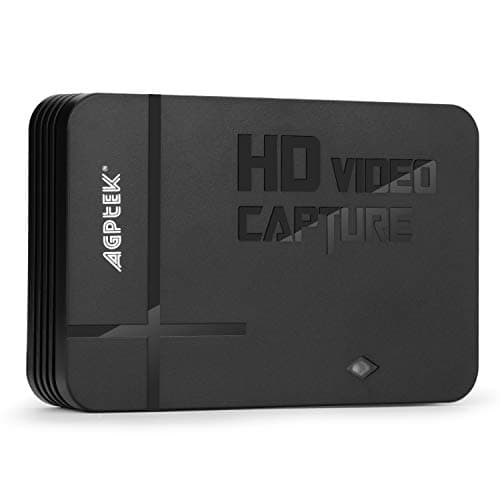
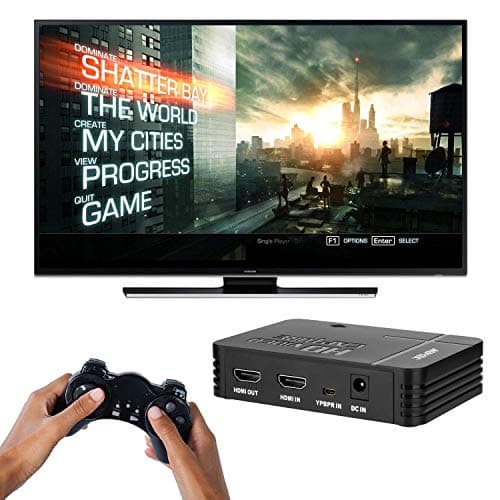
1080P Game Video Capture Card with HDMI and YpbPr Input, Mic-in Video Recorder Compatible with Xbox 360/One/ PS3 /PS4 etc
AGPTEK
£64.18
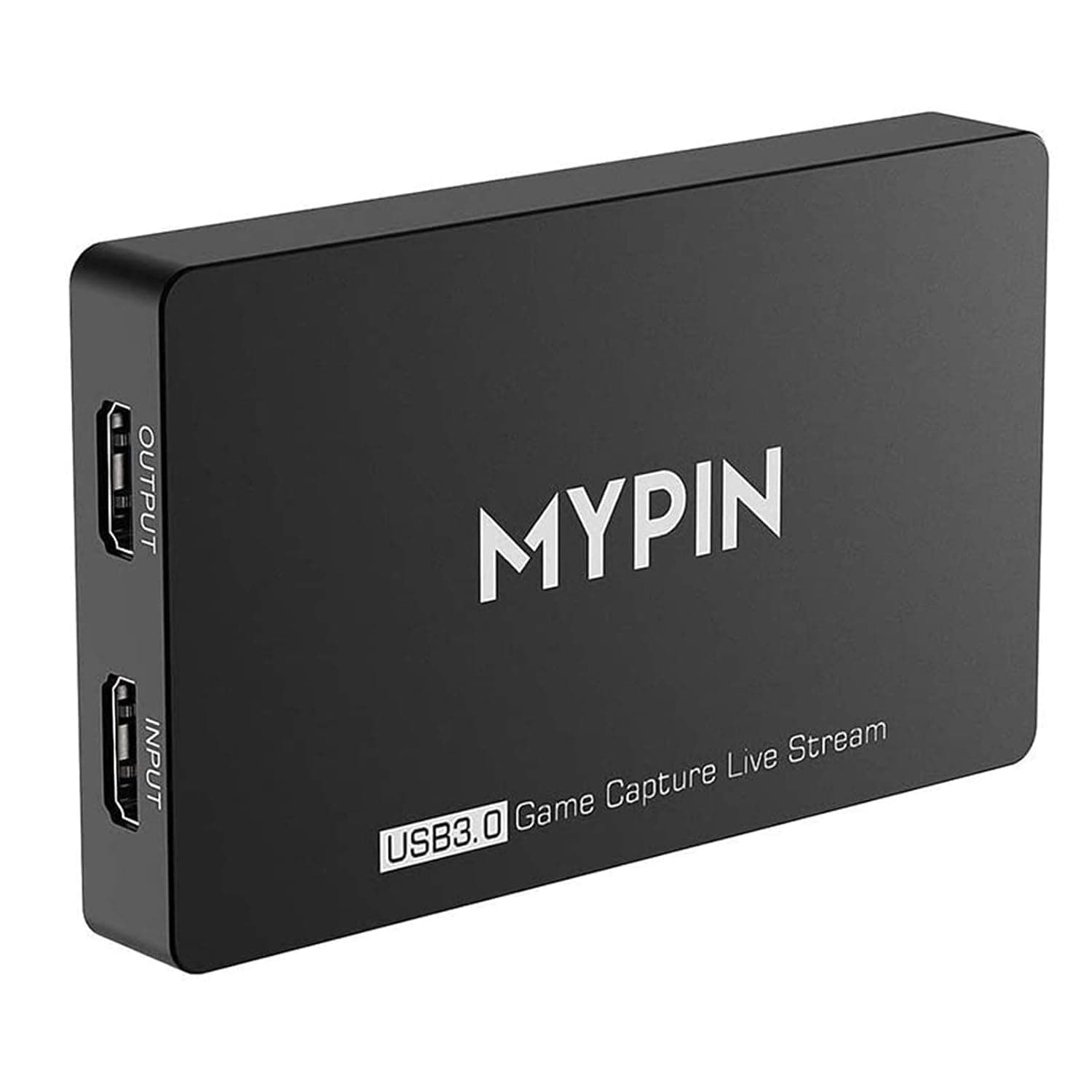
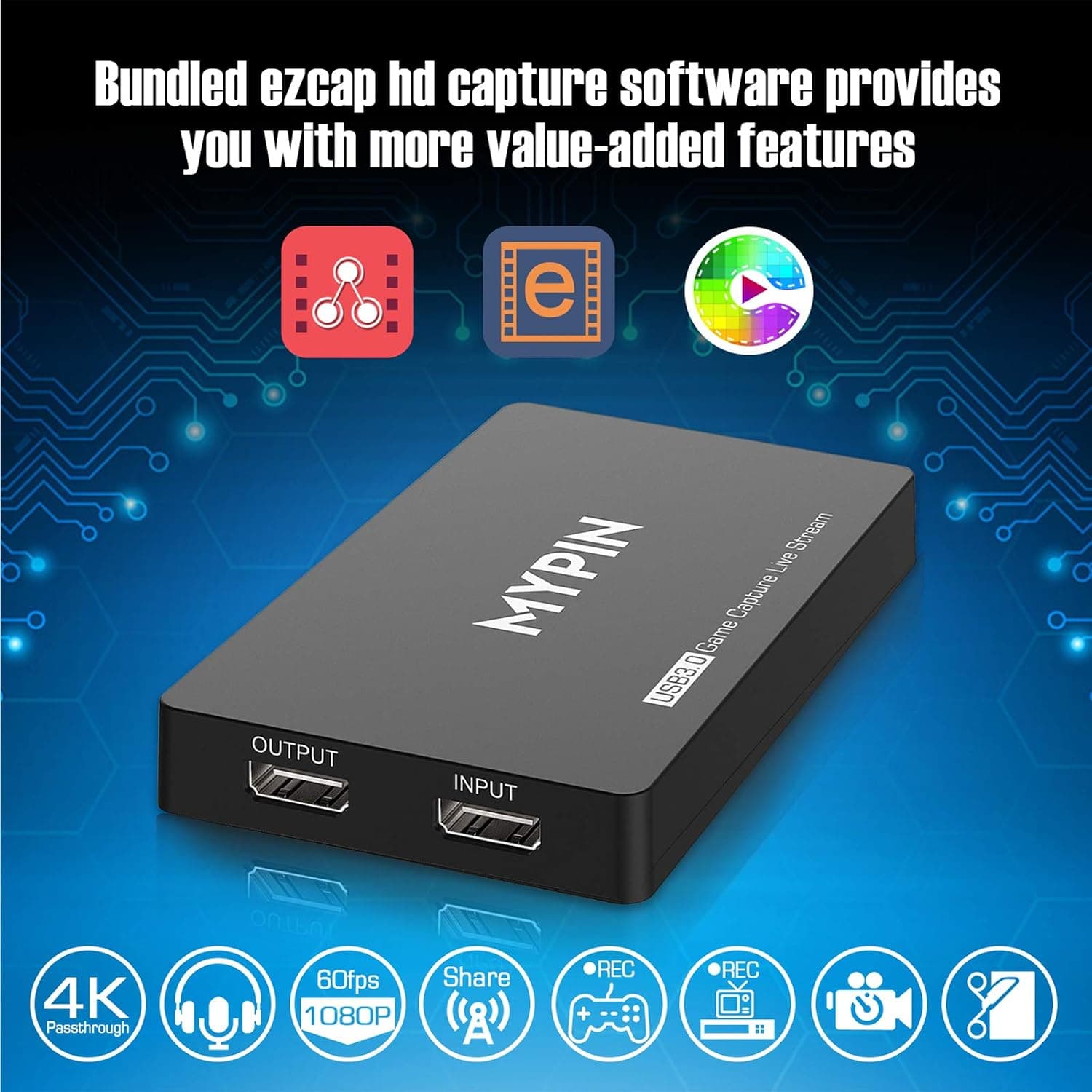
4K Capture Card for Live Streaming, MYPIN USB3.0 HDR Capture 1080P@60fps Support Microphone and Gamepad Party Chat for Nintendo Switch/ PS4 /Xbox One 360 /Wii U/Action Camera/DSLR Camcorder
MYPIN
£19.99
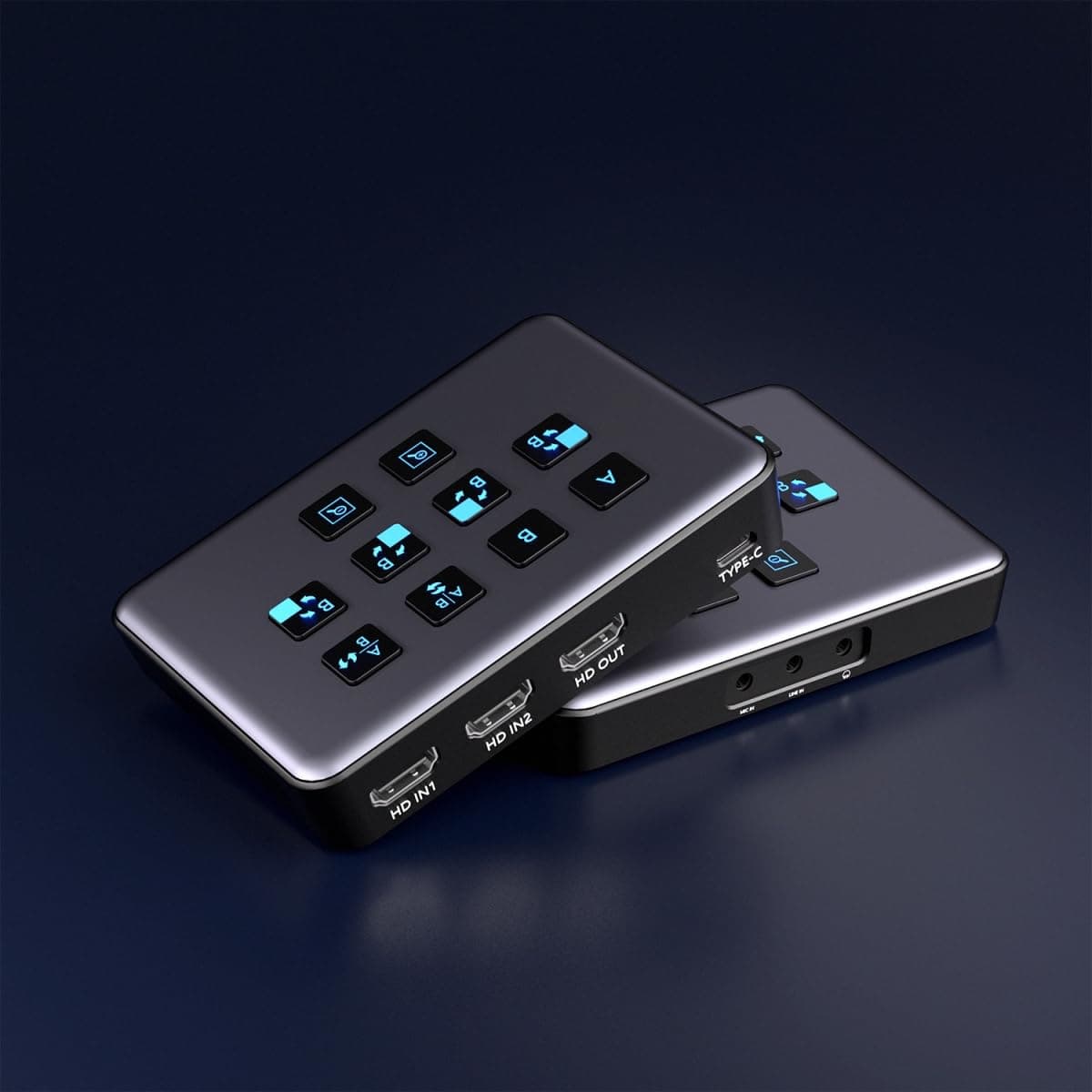
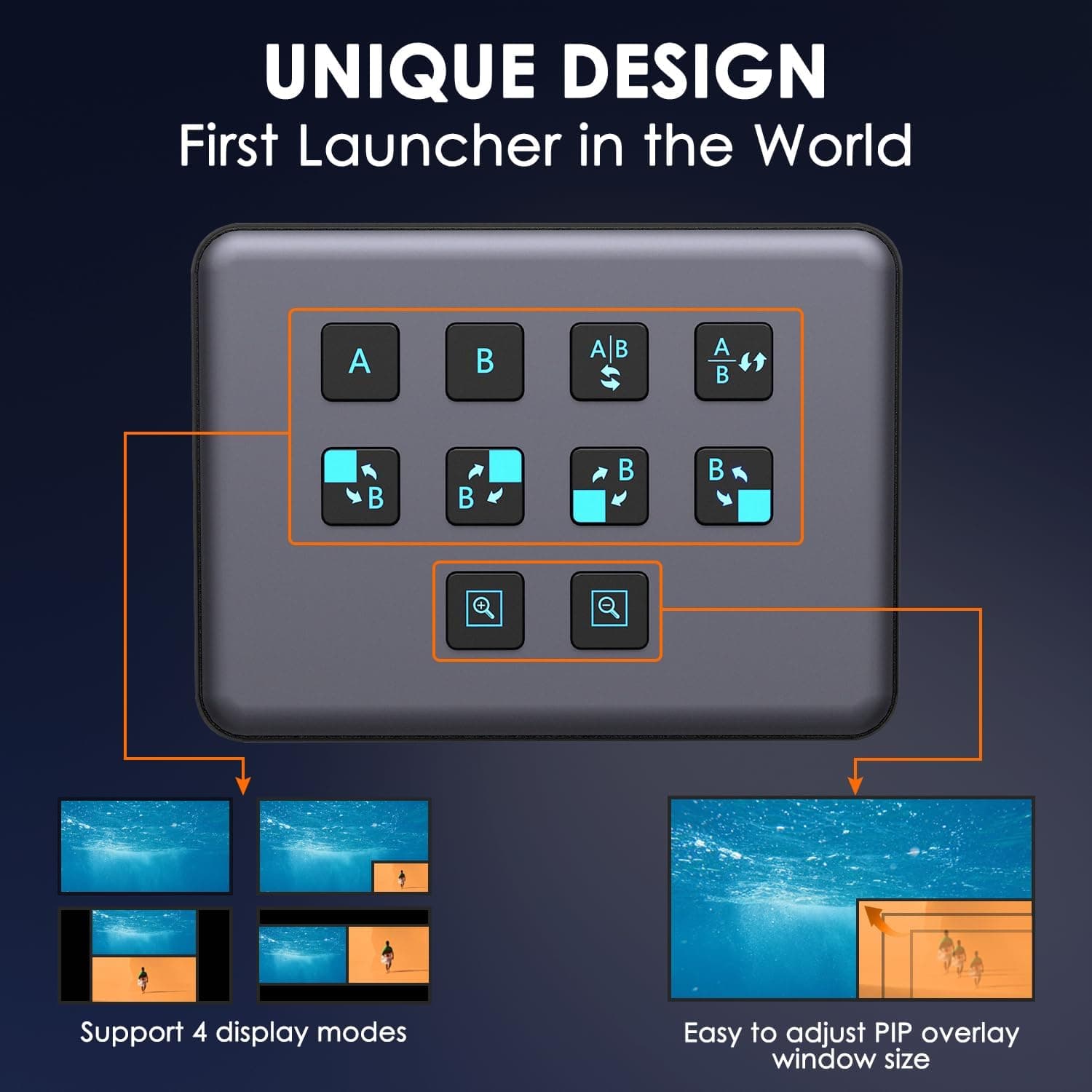
4K Dual HDMI Audio Video Capture Card, USB3.0 1080P 60FPS Equipment for Live Streaming,Capture Card with Loop Camera Link to Type-C Recording Game Video Mixer,Passthrough for Xbox PS5 PS4 Etc
EDISTEC
£25.99
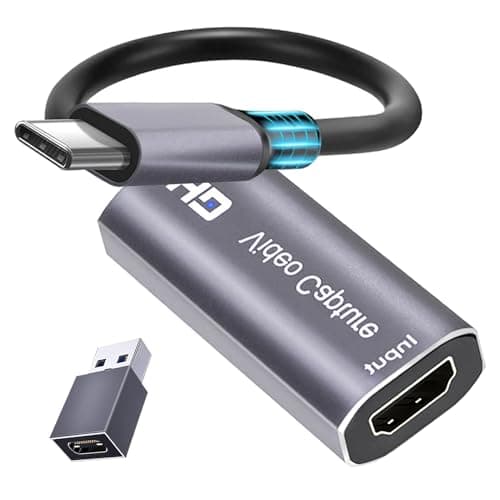
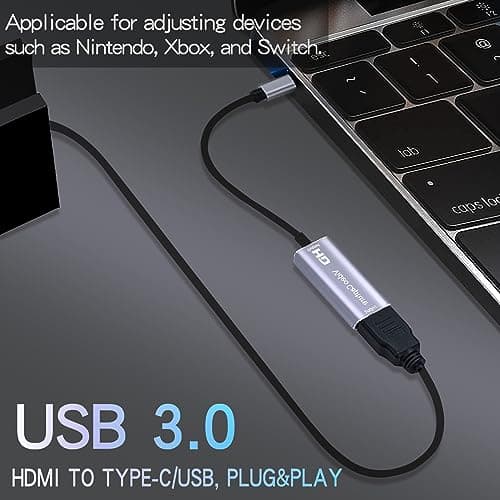
4K HDMI Capture Card, Cam Link Video Capture Card HDMI to 1080P Type-C for Windows Mac OS System for Streaming Gaming Meeting with USB C Adapter to Adjust PS3 4, Switch, Xbox
Extenuating Threads
£12.99